

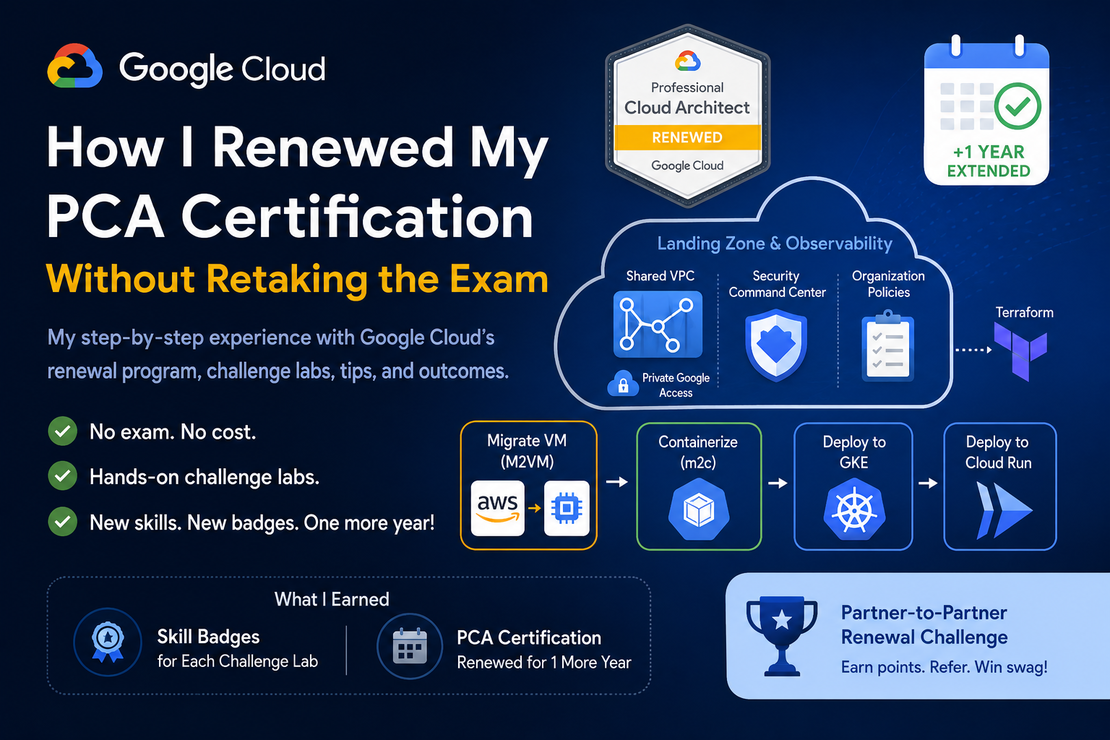
My Google Cloud Professional Cloud Architect (PCA) certification was due to expire in December 2026.
And I wasn’t really looking forward to renewing it.
Not because I don’t enjoy Google Cloud, but because renewing a professional certification usually means getting back into certification preparation mode.
There is a difference between knowing a technology and preparing for an exam.
For an exam, you need to get used to analyzing scenarios, looking for small clues in questions, eliminating wrong answers, managing time, and getting yourself back into that exam mindset.
On top of that, I had taken my original PCA exam as an online-proctored exam, so there was also the thought of going through that whole environment again.
Then I came across something interesting.
Google Cloud is currently offering a Continuing Education renewal option for selected certifications.
And Professional Cloud Architect is one of them.
The interesting part?
👉 No certification exam
👉 No additional exam cost
👉 Complete hands-on learning activities instead
👉 Get your certification extended by one year
That definitely got my attention. 🙂
So I decided to give it a try.
In this post, I’ll share how the renewal worked for me, the two Skill Badge activities I completed, where I got stuck, and a few tips that might save you some time if you are planning to do the same.
Note: This is a limited Continuing Education renewal program with specific eligibility conditions. Always check Google’s latest renewal documentation before starting, as the requirements and availability can change.
So, What Do You Need to Do?
For my PCA renewal, the process was actually quite simple.
There were mainly two things I needed to take care of.
1. Make Sure the Certification Email Is Synced
Before doing anything else, make sure the email associated with your Google Cloud certification is correctly linked with your Google Skills for Partners profile.
Google provides the instructions here:
👉 Continuing Education Renewal – Email Sync
In simple terms:
- Check the email associated with your Google Cloud certification.
- Check the account you’re using for Google Skills for Partners.
- Make sure your professional or partner profile is correctly associated.
- Open the renewal path and verify that your certification is recognized as eligible.
Don’t skip this part.
You don’t want to spend hours completing the activities and then discover that your certification isn’t properly associated with your learning profile.
2. Complete the Required Learning Activities
For PCA, I completed these two recommended activities:
👉 Implement a Landing Zone and Observability
👉 Migrate Virtual Machines to Google Cloud
You can find them in the PCA renewal path here:
👉 Professional Cloud Architect Certification Renewal
When I initially saw “learning activities”, I thought these might be normal training labs.
They aren’t exactly that.
These are Skill Badge courses, and the important part is the Challenge Lab.
And Challenge Labs are where things get interesting.
Normal Lab vs Challenge Lab
If you have done Google Cloud labs before, you probably know how a normal lab works.
You are generally given detailed instructions.
Go here.
Click this.
Create this resource.
Run this command.
Enter this value.
A Challenge Lab doesn’t work like that.
You are given the context and a set of tasks, and then you need to figure out how to complete them.
You are not there to be taught every Google Cloud concept step by step. You are expected to use the skills you already have to solve the challenge.
Personally, I think this makes much more sense for certification renewal.
Instead of answering another set of multiple-choice questions, you are actually doing something in Google Cloud.
So let’s get into the two activities.
Challenge 1: Implement a Landing Zone and Observability
⏱️ Time: 1 hour 30 minutes
This challenge is about setting up the foundation of a secure Google Cloud environment.
The Host and Service projects are already created for you, and you need to complete tasks around:
- Shared VPC
- Private Google Access
- Terraform
- Organization Policies
- Compute Engine
- Security Command Center
Terraform is used heavily here, including Google’s Cloud Foundation Fabric modules.
My Experience
This one went quite smoothly for me.
I was able to complete it on my first attempt without any major problems.
I also found the task interesting because you’re doing something that feels relevant to a Cloud Architect: setting up a Shared VPC, applying security controls, and managing infrastructure using Terraform.
There are, however, a couple of things worth knowing before starting.
Tip: Know Some Basic Terraform
You don’t need deep Terraform expertise for this challenge, but you should at least know what these commands do:
terraform init
terraform plan
terraform apply
If you haven’t worked much with Terraform, think about them this way:
terraform init prepares the Terraform environment and downloads the providers and modules required by the configuration.
terraform plan shows you what Terraform is planning to create or change.
terraform apply actually applies those changes.
Basically:
Initialize → Review → ApplyHaving at least this much Terraform knowledge will make the lab much easier.
Another Small Terraform Tip
If the lab gives you values that are going to be used repeatedly by the Terraform configuration, check whether you can set the appropriate values or defaults directly in the supplied Terraform files.
Otherwise, you may find yourself entering the same values every time you run:
terraform planand again when you run:
terraform applyIf you need to run them multiple times, entering the same values repeatedly gets annoying pretty quickly. 🙂
Just make sure whatever you change is allowed by the Challenge Lab instructions.
Overall, though, I had no real issues with this challenge.
One down. One to go.
Challenge 2: Migrate Virtual Machines to Google Cloud
⏱️ Time: 2 hours
Now this one was more interesting.
And unlike the first challenge…
I didn’t clear it on my first attempt.
The overall scenario is actually quite nice.
You start with a legacy application running on an AWS EC2 VM and gradually migrate and modernize it.
The journey looks something like this:
AWS EC2 → Compute Engine → Container → GKE → Cloud RunThere are three main parts to the challenge.
Task 1: Migrate the Legacy VM
First, you migrate the Cymbal Web application from AWS to Google Cloud using Migrate to Virtual Machines (M2VM).
You create the AWS source, configure the migration, start replication, and eventually create a test clone in Compute Engine.
My main advice here:
Have patience. 🙂
When I created the AWS source, it took around 10–15 minutes before it became active.
Then you start replication.
And that takes some more time.
At first, when something sits there for several minutes, you naturally start wondering:
Did I configure something incorrectly?
Not necessarily.
Some operations in this challenge simply take time.
So don’t start changing things immediately just because the status isn’t changing quickly.
Task 2: Containerize the VM and Deploy to GKE
Once the application is running on Compute Engine, the next part is to modernize it.
This is where you take the application from a traditional VM and turn it into a container.
For that, the challenge uses the Migrate to Containers (m2c) CLI.
This was probably the part where I had to think the most.
The challenge gives you Google’s m2c documentation as a hint:
👉 Migrate to Containers CLI Reference
But again, this is a Challenge Lab.
It doesn’t necessarily tell you:
Now copy and paste this exact command.
You have to use the documentation and figure out what you need.
A few commands and help options that were useful for me were:
./m2c copy default-filters

./m2c copy gcloud --help

./m2c analyze --help

./m2c generate --help
This is actually one of the things I liked about the challenge.
Knowing how to find what you need from documentation is also an important skill.
Eventually, you generate the container artifacts, build the image, and deploy the application to GKE.
And then comes…
Skaffold.
This step took quite some time in my experience.
Keep that in mind when looking at the remaining time on the lab clock.
Where My First Attempt Failed
I went through Task 2.
The application was deployed to Kubernetes.
The LoadBalancer had an external IP.
I opened that IP.
The application was working.
So I thought:
Great. Done.
Except the Challenge Lab didn’t agree with me. 😄
The task would not validate as completed.
At that point, my progress was stuck at 70%.
The scoring was roughly:
| Progress | Completion |
|---|---|
| Task 1 | 40% |
| Task 2 | 70% |
| Task 3 | 100% |
And for the Skill Badge to count, you need to reach 100%.
I still don’t know exactly what I missed during that first attempt.
One thing I remember is that the GKE cluster was supposed to have a node count of 1.
It is possible that I left it at the default value of 3 during my first attempt.
Was that definitely the reason validation failed?
I don’t know.
The application was deployed, the external IP was available, and I could access it successfully.
So functionally things looked good.
But automated Challenge Lab validation can be strict about the exact configuration requested.
That leads to probably my biggest tip from this lab:
Read Every Small Requirement Carefully
Don’t assume that because the application works, the task will automatically pass validation.
Node counts, names, regions, ports, networking settings, and other small details can matter.
Second Attempt
The good thing?
You can try again.
And this is one of the big advantages I see with this renewal approach.
I started the challenge again.
This time I made sure the GKE node count was set to 1, followed the requirements carefully, and completed the tasks again.
And this time…
100%. 🎉
No problems.
So yes, I needed two attempts for this Skill Badge, but I still preferred this experience over failing a certification exam and having to deal with the consequences of that.
Here, I could simply understand what might have gone wrong, try again, and move on.
Task 3: Deploy the Container to Cloud Run
The final task was comparatively straightforward.
Now that the application had been containerized, you deploy the same image to Cloud Run.
The configuration included things like:
- required service name,
- specified region,
- public access,
- container port
80.
I liked the overall flow of this challenge.
You start with an application running as a VM on AWS.
You migrate it to Compute Engine.
Then you containerize it.
Then you run it on GKE.
And finally, you demonstrate that the same container can also run on Cloud Run.
It gives you a nice practical view of migration and modernization.
A Small Time-Saving Tip
Remember that Skaffold operation I mentioned?
It can take time.
Once I saw that the container image I needed was available, I started working on the Cloud Run task in parallel while the GKE-related process was still finishing.
That saved some time.
When you only have two hours for the lab, there is no point staring at a progress indicator if you can safely work on another independent step. 🙂
What Happened After I Completed Both Activities?
This part was surprisingly quick.
After completing both required Skill Badge activities, I didn’t have to submit anything manually.
Within a few minutes, the renewal page was automatically updated.
You should see a message similar to the following once all renewal requirements are completed:
Requirements completed
Congratulations! Your certification status has been updated and no further action is required.
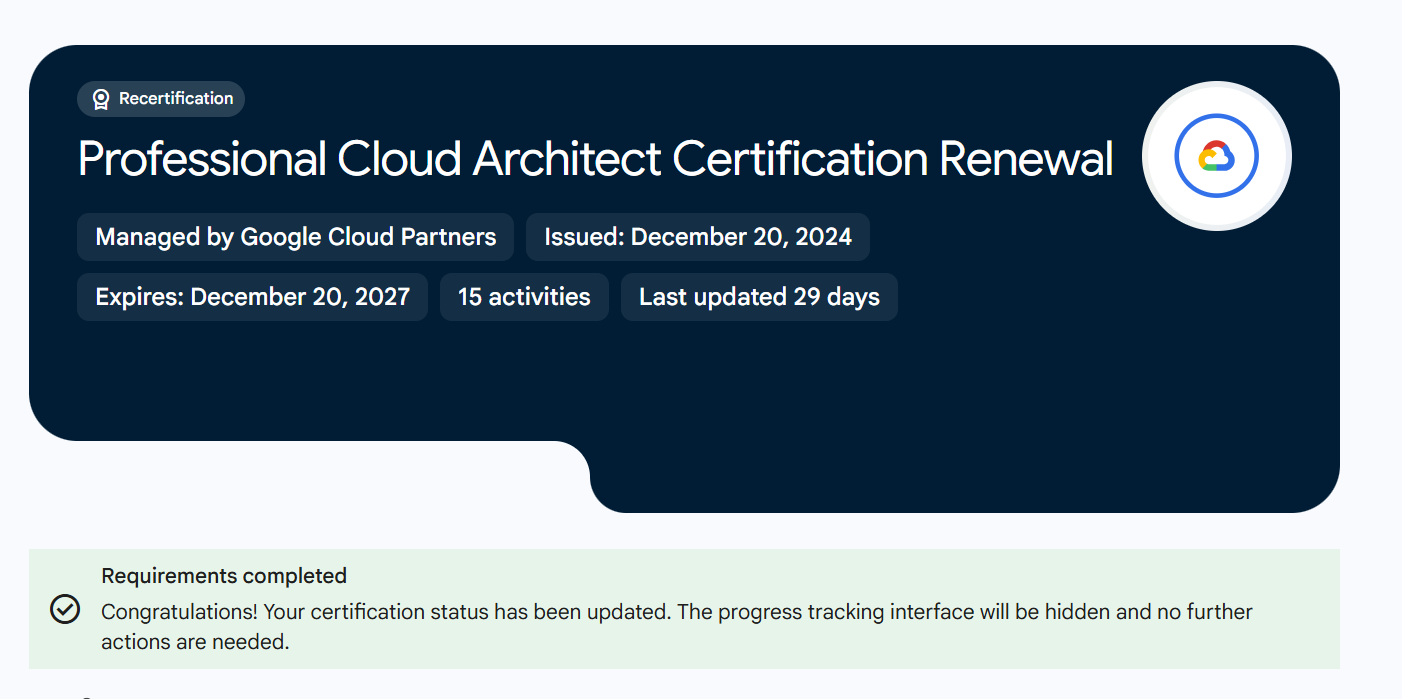
Certification renewal requirements completed successfully.
I then checked Credly.
And there it was.
My Professional Cloud Architect certification expiration date had been extended by one year. 🎉
That was it.
No exam.
No proctor.
No additional certification exam fee.
And You Get Skill Badges Too
Another thing I like about this process is that you’re not doing these activities only to make a renewal counter reach 100%.
You are also completing Skill Badge courses.
So alongside renewing PCA, I got to work hands-on with technologies such as:
- Terraform
- Shared VPC
- Organization Policies
- Security Command Center
- Migrate to Virtual Machines
- Migrate to Containers
- GKE
- Skaffold
- Cloud Run
And you have the Skill Badges from the learning activities as well.
That’s a nice bonus.
Exam Renewal vs Continuing Education
For me, this is really the biggest difference.
If I had gone down the exam route, I would have spent time preparing myself to take an exam.
That means revisiting topics, practicing questions, sharpening scenario-analysis skills, and getting comfortable with the testing environment again.
With Continuing Education, I spent that time doing things.
I configured infrastructure.
I worked with Terraform.
I migrated a workload.
I containerized an application.
I deployed it to Kubernetes.
I deployed it to Cloud Run.
And yes, I got stuck.
Then I tried again and figured it out.
For someone who has already passed the PCA exam once, I personally find that a much more useful way to demonstrate continued learning.
A Few Advantages I See
After completing the process, these are the things I liked most:
👉 No proctored certification exam
👉 No additional certification exam cost
👉 Hands-on instead of multiple-choice questions
👉 You can retry the Challenge Labs
👉 You learn or revisit useful Google Cloud technologies
👉 You earn Skill Badges along the way
👉 Renewal happens automatically after completing the requirements
And most importantly, I didn’t spend weeks getting myself back into certification-exam mode.
Final Thoughts
When I started thinking about my PCA renewal, I was expecting to go through another round of certification preparation and another online-proctored exam.
Instead, I ended up setting up a Google Cloud landing zone with Terraform, working with Shared VPC and security controls, migrating an application from AWS, containerizing it, deploying it to GKE and Cloud Run, and earning Skill Badges along the way.
And then my PCA was extended for another year.
Was everything smooth?
No.
I got stuck at 70% on the second Challenge Lab and had to do it again.
But that’s also why I liked this process.
I’d rather spend my time troubleshooting why a real Google Cloud deployment isn’t meeting the required configuration than spend the same time memorizing things just to answer an exam question.
Cloud technology keeps changing, and we need to keep learning with it.
For me, Continuing Education feels like a better way to renew a certification I have already earned.
If your PCA is coming up for renewal and you’re eligible for this option, definitely take a look before booking another exam.
👉 Professional Cloud Architect Certification Renewal
PCA renewed for another year. Two Skill Badge activities completed. And some useful hands-on learning along the way. 🙂
Frequently Asked Questions (FAQ)
Can you renew the Google Cloud Professional Cloud Architect certification without taking an exam?
Yes. Google Cloud offers a Continuing Education renewal program for eligible certifications, including the Professional Cloud Architect (PCA). Instead of retaking a 2-hour proctored exam, you complete designated Google Cloud Skills Boost hands-on challenge labs and Skill Badges to extend your certification validity.
What are the requirements to renew Google Cloud PCA via Continuing Education?
You must complete required Google Cloud Skills Boost learning paths, specifically hands-on Skill Badges and Challenge Labs (such as Migrate to Virtual Machines and Build Infrastructure with Terraform). Once completed, the renewal is automatically validated and your certification is extended.
How long does it take for the Google Cloud certification renewal to reflect on Credly?
Once all required challenge labs and Skill Badges are completed under the Google Cloud Skills Boost account linked to your Certification Manager email, the renewal typically reflects in Credly and Webassessor within 24 to 72 hours.
How long is the Google Cloud PCA certification extended for through Continuing Education?
The Continuing Education renewal extends your Google Cloud Professional Cloud Architect certification active status by one year from your current expiration date.



Community Discussion 0